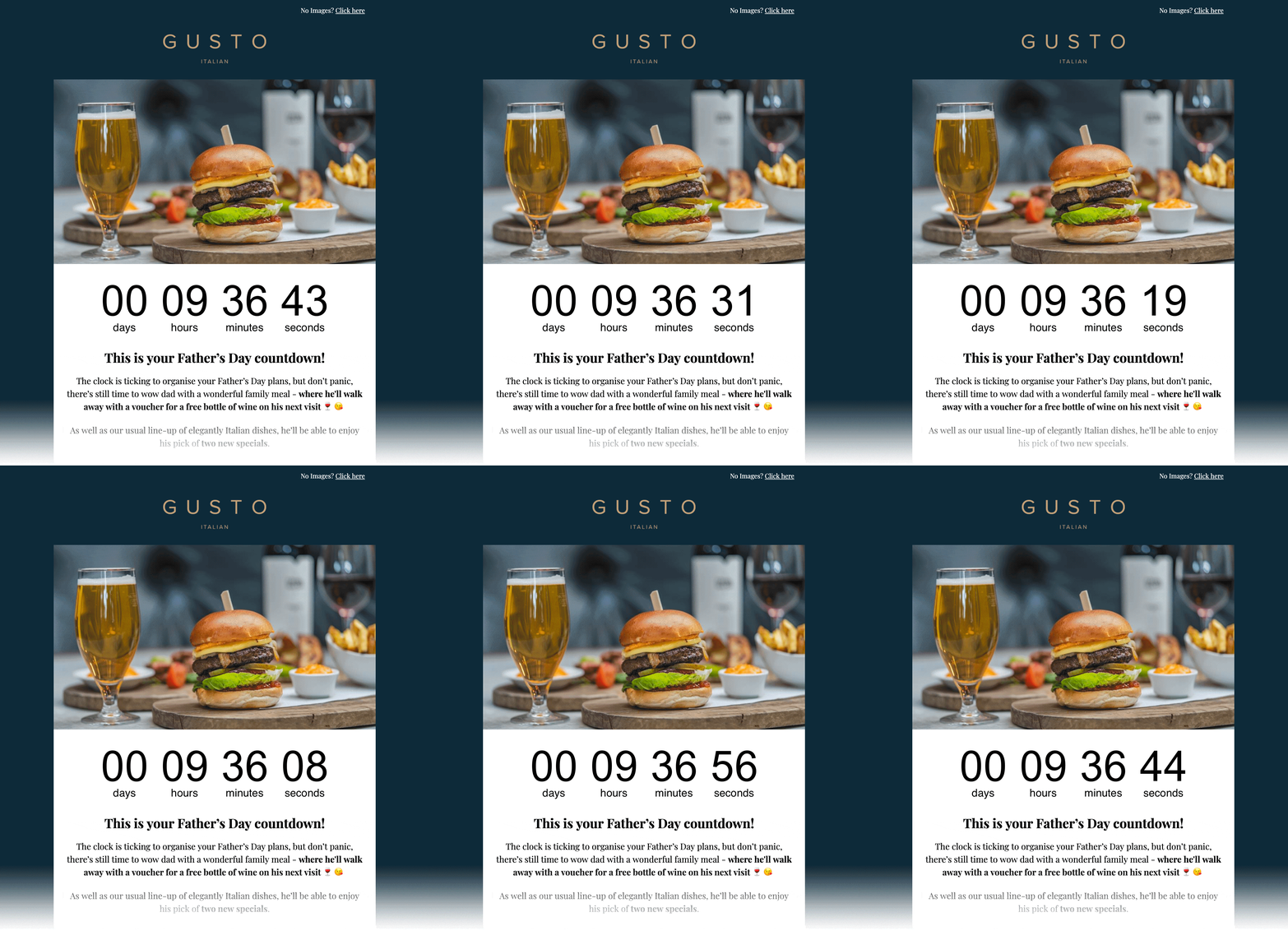
Why a countdown timer works so well on Black Friday
Black Friday is the most crowded week of the year in every inbox. Your subscribers receive dozens of promotions from brands that all say "sale ends soon". A countdown timer turns that claim into something visible: a clock that is actually running out.
Because the timer is an animated GIF generated when the email is opened, it always shows the real time left, no matter if the subscriber opens the email the day you sent it or three days later. That makes it perfect for early access emails, the main launch and the "last hours" reminders that usually drive a big share of Black Friday revenue.
It is also simple and safe: the timer is a regular image, so it displays in Gmail, Apple Mail, Outlook, Yahoo and mobile apps without scripts or special code.
How to add a Black Friday countdown to your email
- Create the timer. Go to EmailCountdownTimer.com and set the end date, for example Friday November 27, 2026 at 23:59, in your store's timezone.
- Match your brand. Pick the colors, font and labels. Black backgrounds with a strong accent color (red, yellow or your brand color) work great for Black Friday.
- Copy the embed code. Click "Get code" to get the HTML snippet for your timer.
- Paste it into your email. Add an HTML or code block in your email editor and paste the snippet. Send yourself a test and check it on desktop and mobile.
- Reuse it everywhere. Use the same timer in every email that points to the same deadline, and create a second one for Cyber Monday.
Step-by-step guides for the most popular platforms:
A simple Black Friday email sequence with countdowns
You don't need a dozen emails. This sequence covers the moments where urgency matters most, and each email uses a countdown to one clear deadline.
1. Teaser / waitlist
Announce that Black Friday is coming and invite subscribers to join a VIP list or save their favorite products.
Countdown to the moment your sale starts.
2. Early access for VIPs
Reward your best customers with early access. Short windows feel exclusive and convert well.
Countdown to the end of the early access window.
3. The sale is live
Your main launch email: the offer, the best products and one clear call to action.
Countdown to the end of Black Friday (Nov 27, 23:59).
4. Last hours
A short reminder for people who opened but didn't buy. Keep the copy brief and let the timer do the work.
Same Black Friday timer, now showing only a few hours left.
5. Cyber Monday / final chance
Extend the sale or launch a Cyber Monday-only offer for the subscribers who missed Friday.
New countdown to the end of Cyber Monday (Nov 30, 23:59).
Best practices for Black Friday timers
- Set the end date in the timezone of most of your customers, and mention it in the copy ("ends Friday at midnight EST").
- Place the timer above the fold, close to your main button, so the urgency and the action are seen together.
- Paste the embed code instead of uploading the image. Some platforms, like Klaviyo, download and cache uploaded images, which stops the timer from updating.
- Decide what happens when time is up: show zeros, hide the timer or display a message like "Sale ended" (available on paid plans).
- For automated flows (welcome series, abandoned cart) use an evergreen timer that starts when each subscriber opens the email, so every person gets their own deadline.
- Some Outlook desktop versions for Windows only show the first frame of animated GIFs. Your timer still shows the correct time left, it just doesn't animate there.
- Use one honest deadline per offer. Fake timers that reset hurt trust and deliverability.
Unlimited views, even on the free plan
Black Friday campaigns usually go to your whole list, often more than once, so timer views grow fast. That's not a problem here: the free plan includes unlimited views (fair use) with a small watermark, and paid plans never stop your timers. If a paid plan goes over its monthly views, timers keep running with a watermark instead of breaking. To send without watermark, pick a plan on the pricing page, from $6/month.