Brevo Countdown Timer
Add a real-time countdown timer to Brevo emails by pasting a small HTML snippet. Create your timer, copy the embed code, paste it into a Brevo HTML Block, and you're done.
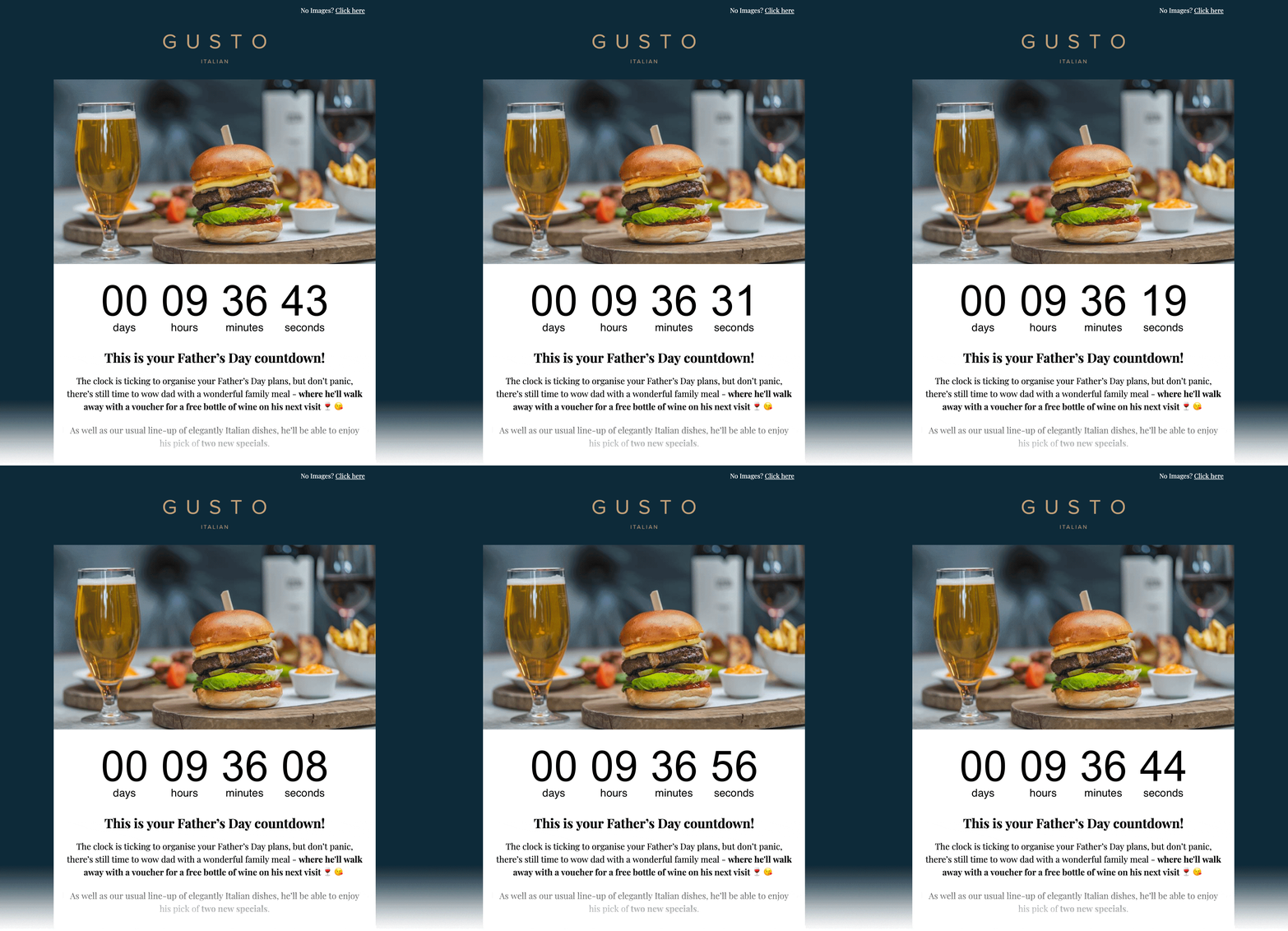
<!-- Email Countdown Timer -->
<div style="text-align:center;">
  <img src="https://emailcountdowntimer.com/i/{hash}" alt="Countdown timer" />
</div>
Step-by-step: add a countdown timer to Brevo
Follow these steps to embed your timer using a HTML Block.
Brevo may cache static HTML in campaigns. Wrapping your countdown embed with %DYNAMIC% markers (opening and closing) tells Brevo to treat that section as dynamic so the timer image can refresh. If your account uses different syntax, follow the latest Brevo documentation for dynamic HTML.
%DYNAMIC%

<!-- Paste your Email Countdown Timer embed code here -->

%DYNAMIC%Tips for better results
Small changes that can improve clicks and conversions.
Place the timer near your main offer and CTA to reinforce urgency.
Use colors and fonts that look native inside your email template.
Real-time timers keep the countdown accurate right up to the deadline.
FAQ
Quick answers about using countdown timers in Brevo.
Ready to add urgency to your Brevo emails?
Create your countdown timer now and paste the embed code into a Brevo HTML Block.