Mailchimp Integration
•
Paste into Code Block
Mailchimp Countdown Timer
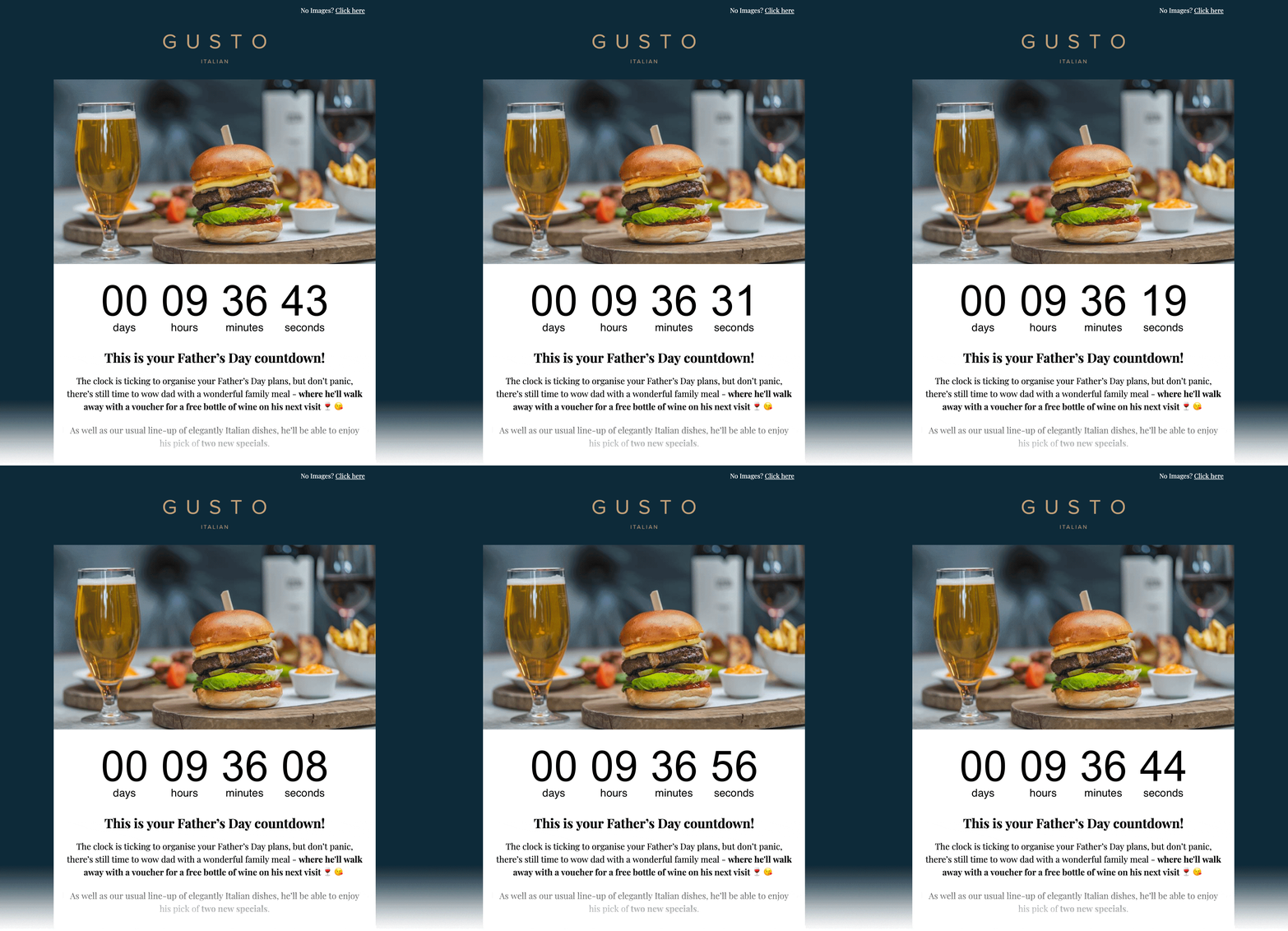
Add a real-time countdown timer to Mailchimp emails by pasting a small HTML snippet. Create your timer, copy the embed code, paste it into a Mailchimp Code Block, and you're done.
Create Countdown Timer
Free plan available • No credit card required
Works with campaigns & flows
Real-time updates
Paste HTML
Email preview
Embed HTML
Copy → paste into Code Block
<!-- Email Countdown Timer -->
<div style="text-align:center;">
  <img src="https://emailcountdowntimer.com/i/{hash}" alt="Countdown timer" />
</div>
Step-by-step: add a countdown timer to Mailchimp
Follow these steps to embed your timer using a Code Block.
Step 1
Create your timer
Build a countdown timer in minutes using Email Countdown Timer.
Step 2
Copy the HTML code
Click "Get code" and copy the HTML embed snippet.
Step 3
Open Mailchimp
Go to your Mailchimp campaign or flow email.
Step 4
Add an Code Block
Drag an Code Block into your email where you want the timer to appear.
Step 5
Paste the HTML
Paste the embed code and save your content.
Step 6
Preview & send
Send a test email to confirm the timer updates in real time.
Don’t add the timer as an Image URL in Mailchimp.
Image URL inserts can be cached/downloaded by Mailchimp, which can stop real-time updates. Paste the embed code into a Mailchimp Code Block instead.
Tips for better results
Small changes that can improve clicks and conversions.
Make it visible
Place the timer near your main offer and CTA to reinforce urgency.
Match your brand
Use colors and fonts that look native inside your email template.
Keep it real
Real-time timers keep the countdown accurate right up to the deadline.
Create Countdown Timer
Free plan available • Works with Mailchimp campaigns and flows
Getting ready for Black Friday?
Black Friday is on November 27 and Cyber Monday on November 30. See how to add a countdown to your campaigns and the email sequence we recommend.
FAQ
Quick answers about using countdown timers in Mailchimp.
Yes. Your countdown is delivered as an image (GIF), which is supported by all major email clients.
Yes. You can start with the free plan and upgrade later if you need more views or advanced features.
Yes. The timer image refreshes so the time remaining stays accurate up to the end date.
No. Mailchimp can cache/download external images when inserted as an Image URL, which can prevent real-time updates. Paste the embed code into a Mailchimp Code Block instead.
Ready to add urgency to your Mailchimp emails?
Create your countdown timer now and paste the embed code into a Mailchimp Code Block.
Create Countdown Timer
No credit card required